Add some text at the end of Word document

How to add some text at the end of document that is opened in Edraw office viewer, Kindly send me java script code so that i can enter signatures in my document. Please reply as soon as possible and send my java script Example.

Play slideshow in the same window

Edraw Office Viewer Component provides a solution for opening then playing the slideshow file in the same window. Of course you can play it with full screen mode too.

Simply call the “SlideShowOpenAndPlay” method, you can get the follow effect immediately.
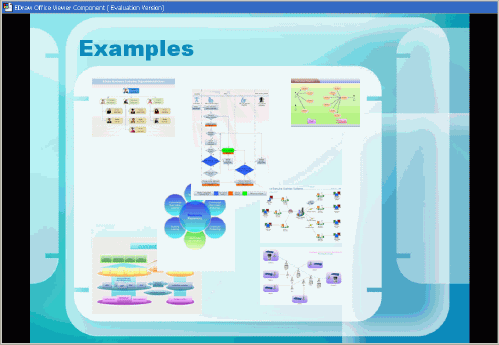
PowerPoint Viewer ActiveX Control

You can show or hide the titlebar, screenbar, toolbar too.

You can call it via javascript or vbscript in your html page as follow.

document.OA1.SlideShowOpenAndPlay(”http://www.ocxt.com/demo/samples/sample.ppt“, false, false, false, false);

OR:

OA1.Open(”http://www…./sample.pps“, “PowerPoint.Slide”);

OA1.SlideShowPlay(false, false, true, false);

[id(99), helpstring("Opens then plays the PowerPoint slide show file in the same window or full screen.")]
HRESULT SlideShowOpenAndPlay([in] VARIANT Document, [in] VARIANT_BOOL bFullScreen, [in] VARIANT_BOOL bShowWebToolbar, [in] VARIANT_BOOL bLoopUntilStopped, [in] VARIANT_BOOL bShowScrollBar, [in, optional] VARIANT WebUsername, [in, optional] VARIANT WebPassword);

[id(100), helpstring("Plays the PowerPoint slide show file in the same window or full screen.")]
HRESULT SlideShowPlay([in] VARIANT_BOOL bFullScreen, [in] VARIANT_BOOL bShowWebToolbar, [in] VARIANT_BOOL bLoopUntilStopped, [in] VARIANT_BOOL bShowScrollBar);

Get the line counts from the Word Component

I am using ASP.NET, C# version 2.0

My concern is that, when the user will close the document on the web
browser, my code will get the line-count through your control and save
in the DB.

Please help me to get line count of the opened document in the component
in the IE.

If possible please send me the sample code to get the line-count using
Javascript.

Macro make Office Automation Easier

Automation is a process that allows applications that are written in languages such as Visual Basic .NET or C# to programmatically control other applications. Automation to Word allows you to perform actions such as creating new documents, adding text to documents, mail merge, and formatting documents. With Word and other Microsoft Office applications, virtually all of the actions that you can perform manually through the user interface can also be performed programmatically by using automation. Word exposes this programmatic functionality through an object model. The object model is a collection of classes and methods that serve as counterparts to the logical components of Word. For example, there is an Application object, a Document object, and a Paragraph object, each of which contain the functionality of those components in Word.

You can call the interesting methods and properties that Microsoft Word provides to you to manipulate documents in Word. The best way to learn how to navigate the object models of Word, Excel, and PowerPoint is to use the Macro Recorder in these Office applications:

1. Choose Record New Macro from the Macro option on the Tools menu and execute the task you’re interested in.
2. Choose Stop Recording from the Macro option on the Tools menu.
3. Once you are done recording, choose Macros from the Macro option on the Tools menu, select the macro you recorded, then click Edit.

This takes you to the generated VBA code that accomplishes the task you recorded. Keep in mind that the recorded macro will not be the best possible code in most cases, but it provides a quick and usable example.

For example to open an existing file and append some text:

object fileName = “c:\\test.doc”;
object readOnly = false;
object isVisible = true;
object missing = System.Reflection.Missing.Value;
Word.ApplicationClass oWordApp = new Word.ApplicationClass();
EDrawOfficeViewer1.Open(ref fileName, ref missing, ref missing);
Word.ApplicationClass oWordApp = EDrawOfficeViewer1.GetApplication();
oWordApp.Selection.TypeText(”This is the text”);
oWordApp.Selection.TypeParagraph();

Start the Word Automation with VBScript in Office Viewer Component

EDraw Office Viewer Component also supports a property called Dispatch that allows you to obtain a reference to the IDispatch interface of the embedded object. From this interface you can automate the object to perform tasks, edit parts of the document, or gather information about what a user has added or removed. For example, if you have a Word document open, you can use code that resembles the following to add a line of text:

Sub OfficeAutomationDemo()
    WebOffice1.CreateNew “Word.Document”
    Set objWord = WebOffice1.GetActiveDocument
    objWord.Content.Text = “This was added by Automation”
End Sub

Insert an image into Word with the EDraw Office Viewer Component

With the EDraw office Viewer Component, you can do the office automation in a customize form or web page. It provides the “GetActiveDocument” method to return the document’s dispath interface.

The follow example written with Visual C++ 6.0 demo how to insert an image into the opened microsoft word document.

void COfficeViewerDlg::OnWordautomation()
{
 CString strFilter = L”Microsoft Word Document|*.doc;*.docx;*.dot;*.rft|All Files (*.*)|*.*||”;
 CFileDialog dlg(TRUE, NULL, NULL, OFN_FILEMUSTEXIST|OFN_HIDEREADONLY, strFilter);
 dlg.m_ofn.nFilterIndex = 1;
 if (dlg.DoModal() == IDOK)
 {
  CString pathname = dlg.GetPathName();
  VARIANT varPath;
  varPath.vt = VT_BSTR; varPath.bstrVal = pathname.AllocSysString();
  VARIANT varOpt;
  varOpt.vt = VT_ERROR; varOpt.scode = DISP_E_PARAMNOTFOUND;
  if(m_oEdrawOfficeViewer.Open(varPath, varOpt)==FALSE){
   AfxMessageBox(L”Failed to open the document!”);
   return;
  }

  LPDISPATCH lpDisp;
  lpDisp = m_oEdrawOfficeViewer.GetActiveDocument();
  
  //Add text to the first line of the document
  _Document m_WordDoc;
  
  //set _Document doc to use lpDisp, the IDispatch* of the actual document.
  m_WordDoc.AttachDispatch(lpDisp); 
  Shape m_wordShape;
  Shapes m_wordShapes;
  
  COleVariant vOpt((long)DISP_E_PARAMNOTFOUND, VT_ERROR);
  COleVariant vTrue((short)TRUE),vFalse((short)FALSE);
  
  CString m_strPath;
  TCHAR exeFullPath[MAX_PATH];
  GetModuleFileName(NULL,exeFullPath,MAX_PATH);
  m_strPath.Format(L”%s”,exeFullPath);
  int ndx = m_strPath.ReverseFind (’\\’);
  m_strPath = m_strPath.Left (ndx);   
  CString filename = m_strPath + L”\\seal.bmp”;   
  
  _Application m_WordApp;
  
  m_wordShapes  = m_WordDoc.GetShapes();
  CString FileName =filename;
  
  m_WordApp=m_WordDoc.GetApplication();
  InlineShapes m_WordInlineShapes;
  InlineShape m_WordInlineShape;
  Selection m_WordSelection;
  m_WordSelection=m_WordApp.GetSelection();
  m_WordInlineShapes=m_WordSelection.GetInlineShapes();
  
  m_WordInlineShape = m_WordInlineShapes.AddPicture(FileName,vFalse,vTrue,vOpt);
  
  m_wordShape = m_WordInlineShape.ConvertToShape();
  
  Shapes shs;
  Shape shp;
  shs=m_WordDoc.GetShapes();
  VARIANT var;
  var.vt=VT_I4;
  var.lVal=shs.GetCount();
  shp=shs.Item(&var);
  shp.Select(&var); 
  
  ShapeRange m_wordShapeRange;
  WrapFormat m_wordWrapFormant;
  
  m_WordApp = m_WordDoc.GetApplication();
  
  m_wordShape = m_WordSelection.GetShapeRange();
  m_wordWrapFormant = m_wordShape.GetWrapFormat();
  
  m_wordWrapFormant.SetType(3);
  m_wordShapeRange.ZOrder(4);
  PictureFormat m_wordPictureFormat = m_wordShape.GetPictureFormat();
  m_wordPictureFormat.SetTransparentBackground(TRUE);
  m_wordPictureFormat.SetTransparencyColor(0xFFFFFF);
  
  FillFormat m_wordFillFormat  = m_wordShape.GetFill();
  m_wordFillFormat.SetVisible(FALSE);
  
  shs.ReleaseDispatch();
  shp.ReleaseDispatch();
  m_wordPictureFormat.ReleaseDispatch();
  m_wordFillFormat.ReleaseDispatch();
  m_wordWrapFormant.ReleaseDispatch();
  m_wordShapeRange.ReleaseDispatch();
  m_wordShape.ReleaseDispatch();
  m_wordShapes.ReleaseDispatch();
  m_WordSelection.ReleaseDispatch();
  m_WordDoc.ReleaseDispatch();
  m_WordApp.ReleaseDispatch();
 } 
}

Failed to get the Excel Worksheets or WorkBooks object

When you develop a worksheet with the macro in the activex control,  you can use the thisworkbook.sheets(”") or thisapplication.workbook(”") to replace the workbook.sheets(”") or application.sheets(”").

What are the differences between early binding and late binding?

Binding refers to how your application connects to an Automation server. There are two common methods: early binding and late binding. The method you should use depends on your application design and objectives.

Which form of binding should I use?

The answer to this question depends as much on the design of your project as anything else. Microsoft recommends early binding in almost all cases. However, there may be reasons for choosing late binding.

Early binding is the preferred method. It is the best performer because your application binds directly to the address of the function being called and there is no extra overhead in doing a run-time lookup. In terms of overall execution speed, it is at least twice as fast as late binding.

Early binding also provides type safety. When you have a reference set to the component’s type library, Visual Basic provides IntelliSense support to help you code each function correctly. Visual Basic also warns you if the data type of a parameter or return value is incorrect, saving a lot of time when writing and debugging code.

Late binding is still useful in situations where the exact interface of an object is not known at design-time. If your application seeks to talk with multiple unknown servers or needs to invoke functions by name (using the Visual Basic 6.0 CallByName function for example) then you need to use late binding. Late binding is also useful to work around compatibility problems between multiple versions of a component that has improperly modified or adapted its interface between versions.

The advantages given to early binding make it the best choice whenever possible.

Automate Excel using Excel OCX and worksheet functions

This article describes how to automate Microsoft Excel 97, Microsoft Excel 2000, Microsoft Excel 2002, or Microsoft Excel 2003 by using the Edraw Office Viewer Component. Specifically, this article illustrates how to get the worksheet dispatch interface.

1. Open Visual Studio .NET

2.  Right-click on the toolbox and select “Choose Items…”

3. Select the COM Components Tab

4. Check Edraw Office Viewer Component and click OK Button

5.  The control should appear in the toolbox as “Edraw Office Viewer Component”

6.  Double-click on the control to add to your form

7.  Resize and move the control on the form as desired

8.  Add a button to the form

9.  Double-click on the button to access code editor and enter the following code within the Click event:

‘Note: Modify code to point to an existing office document file on your web server

EdrawOfficeViewer1.Open “http://www.ocxt.com/demo/sample.xls

10. Change the anchor property of EdrawOfficeViewer1 to Top, Bottom, Left, Right

11. Run the application and click on the button. The Excel program should appear!

For this automation process we need to follow the below steps

1. Add a referrence to the Microsoft Excel object library COM component.

2. Add the namespace Excel

3. Instantiate the class Excel.ApplicationClass as below
Excel.Application xl=EdrawOfficeViewer1.Application

4. To read cell(s) in the worksheet,

Excel.Sheets xlsheets = wb.Sheets; //Get the sheets from workbook
Excel.Worksheet excelWorksheet = (Excel.Worksheet)xlsheets[1]; //Select the first sheet
Excel.Range excelCell = (Excel.Range)excelWorksheet.get_Range(”B4:FZ4″, Type.Missing); //Select a range of cells
Excel.Range excelCell2 = (Excel.Range)excelWorksheet.get_Range(”A5:A5″, Type.Missing); //Select a single cell
Console.WriteLine(excelCell2.Cells.Value2.ToString()); //Print the value of the cell for a single cell selection
System.Array myvalues = (System.Array)excelCell.Cells.Value2; //Assign it to an array
string[] strArray = ConvertToStringArray(myvalues); //Convert array into String array
foreach (string str in strArray)
Console.WriteLine(” Text in Cell ” + str); //Loop through the array to print the values in the cell

Conclusion

Excel is a great tool to work with. When it comes to automating, we need to consider many things. Always remember to quit the excel application in code before exiting. If not, the memory consumed by the excel application will not be freed up.

What is the Office Automation

Productivity is the biggest challenge for any company or small business. Increasing productivity is Microsoft Office’s goal. In that spirit, Microsoft has sought to include features that allow corporate and small business developers to produce quality in-house applications that harness the power and versatility of Office in order to quickly build customized solutions. Automation is the key to this strategy.

Automation (formerly known as OLE Automation) is the programmatic manipulation of any program or component based on certain rules following the Component Object Model (COM). Automation was first pioneered and developed by Visual Basic and Office as a way to allow developers to extend and control the Office environment both internally and externally.

While it is not necessary to know all the details about how Automation works, you should familiarize yourself with some of the key terms and concepts. Namely, an Automation client is any piece of code that creates and calls an instance of a COM server that exposes an “object model.” Object models are an arrangement of classes that expose functionality through various properties and methods and enable programmers to control a product. A particular instance of one of these classes is an object and the properties and methods comprise its interface. The object model for each Office application is different, and must be learned before Automation code can be written.

The Edraw Office Viewer Component provides some simple automation functions. You can call them directly. Or you can get the dispatch interface then do the automation by yourself. The component exposes the Application and ActiveDocument interfaces.